iPhone Photography: How to Get Professional Results From a Phone
You get professional-looking iPhone photos by treating the phone like a constrained camera, not a magic one: control light, framing, timing, and background first, then use focus, exposure, AE/AF Lock, and selective editing to keep the phone’s processing from making unstable decisions for you.
TL;DR
Professional-looking iPhone photos come more from strong photographic decisions than from hidden settings.
Tap-to-focus, exposure adjustment, and AE/AF Lock help keep the phone from changing important decisions between frames.
Default iPhone processing is fast and capable, but ProRAW is more useful when you plan to edit carefully.
Background control and camera position usually matter more than Portrait mode blur alone.
Good light makes phone files look cleaner and more intentional because the scene is already easier to organize.
The best way to improve is to shoot controlled comparison sets and review near-identical frames honestly.
Yes, a serious amateur can get professional results from an iPhone, but not by chasing a secret pro mode. The strongest approach is to use the iPhone like a disciplined camera: simplify the frame, choose better light, control exposure and focus when needed, and edit selectively instead of trusting the phone to make every decision well.
That answer matters because 'professional' is often misunderstood in phone photography. It does not mean making an iPhone behave exactly like a larger-sensor camera in every situation. It means making photographs that look intentional, consistent, and clearly authored. Apple’s own guidance emphasizes lens choice, tap-to-focus, exposure adjustment, and AE/AF Lock rather than a single advanced master setting, while technical sources on computational photography explain why phones rely heavily on multi-frame processing to overcome physical limits in sensor and lens size.
For serious amateurs, that leads to a practical conclusion: let the iPhone help where it is genuinely strong, such as speed, convenience, and computational HDR, but do not expect software to rescue weak hierarchy, cluttered backgrounds, poor light, or vague timing. Those are still photographic problems. Miru’s broader guides on hierarchy, light, timing, and subject separation are useful here because they explain why a stronger picture usually comes from better decisions before capture, not from gear alone.
How can a serious amateur make iPhone photos look intentionally made rather than merely good for a phone?
The short answer is to stop judging the image by the device and start judging it by photographic standards. A strong iPhone photograph still needs a clear subject, readable light, controlled edges, and a meaningful moment. What changes with the phone is not the basic visual logic of photography, but the way the tool behaves: it is fast, wide, heavily automated, and deeply dependent on computational processing. So the most useful mindset is not 'How do I unlock pro quality?' but 'How do I make stronger choices while the phone handles what it handles best?'
This is also why many technically impressive phone images still feel weak. The HDR may be competent, the file may be sharp, and the colors may be vivid, yet the subject is unclear or the background is too competitive. Miru’s archive repeatedly makes the same broader point: better photos usually make better selections. The iPhone can automate exposure and merge multiple frames, but it cannot reliably decide what should matter most in a complex scene according to your intention.
Judge the frame, not the phone.
Make the subject obvious first.
Use the phone’s speed to iterate, not to shoot carelessly.
Treat automation as assistance, not authorship.
Goal | Weak approach | Stronger iPhone approach |
|---|---|---|
Make photos look professional | Search for one magic setting | Control subject, light, framing, and editing |
Get consistent results | Let auto change every frame | Lock key decisions when consistency matters |
Improve quickly | Keep isolated lucky shots | Compare near-identical frames and learn why one wins |
Why do professional-looking phone photos still depend more on light, framing, timing, and background than on secret settings?
Because those variables determine visual hierarchy before software ever begins polishing the file. Light decides where contrast falls, framing decides what stays inside the rectangle, timing decides when relationships become meaningful, and the background decides whether the subject stands out or disappears. Apple documents useful controls for focus and exposure, but those controls operate inside the scene you chose. They cannot remove a bright distraction at the edge or fix a cluttered overlap that weakens the image at its core.
This distinction is especially important on a phone because many users overestimate what computation can solve. Technical sources explain that smartphones use HDR merging, denoising, sharpening, and other processing to compensate for small optics and sensors. That can be remarkably effective, but it does not repeal the basic fact that a confusing scene remains confusing. Artistically, a heavily processed file may even feel less convincing if the image has no strong center of attention to begin with.
A practical consequence follows: if a photo feels weak, diagnose the picture before blaming the format. Ask what the eye notices first. Ask what competes with the intended subject. Ask whether the moment was slightly too early or too late. Those questions improve iPhone work for the same reason they improve any other photography: they identify causes rather than symptoms.
Settings refine; seeing decides.
A clean frame beats a clever feature.
Good light reduces the burden on small optics and heavy processing.
Problem | What settings can help | What settings cannot solve |
|---|---|---|
Backlit subject too dark | Exposure adjustment, AE/AF Lock | A distracting background or weak gesture |
Scene looks flat | Different lens choice, later editing | Uninteresting light or unclear subject |
Subject gets lost | Portrait mode, exposure tweaks | Poor camera position and cluttered overlap |
How do tap-to-focus, exposure adjustment, and AE/AF Lock make iPhone results more consistent?
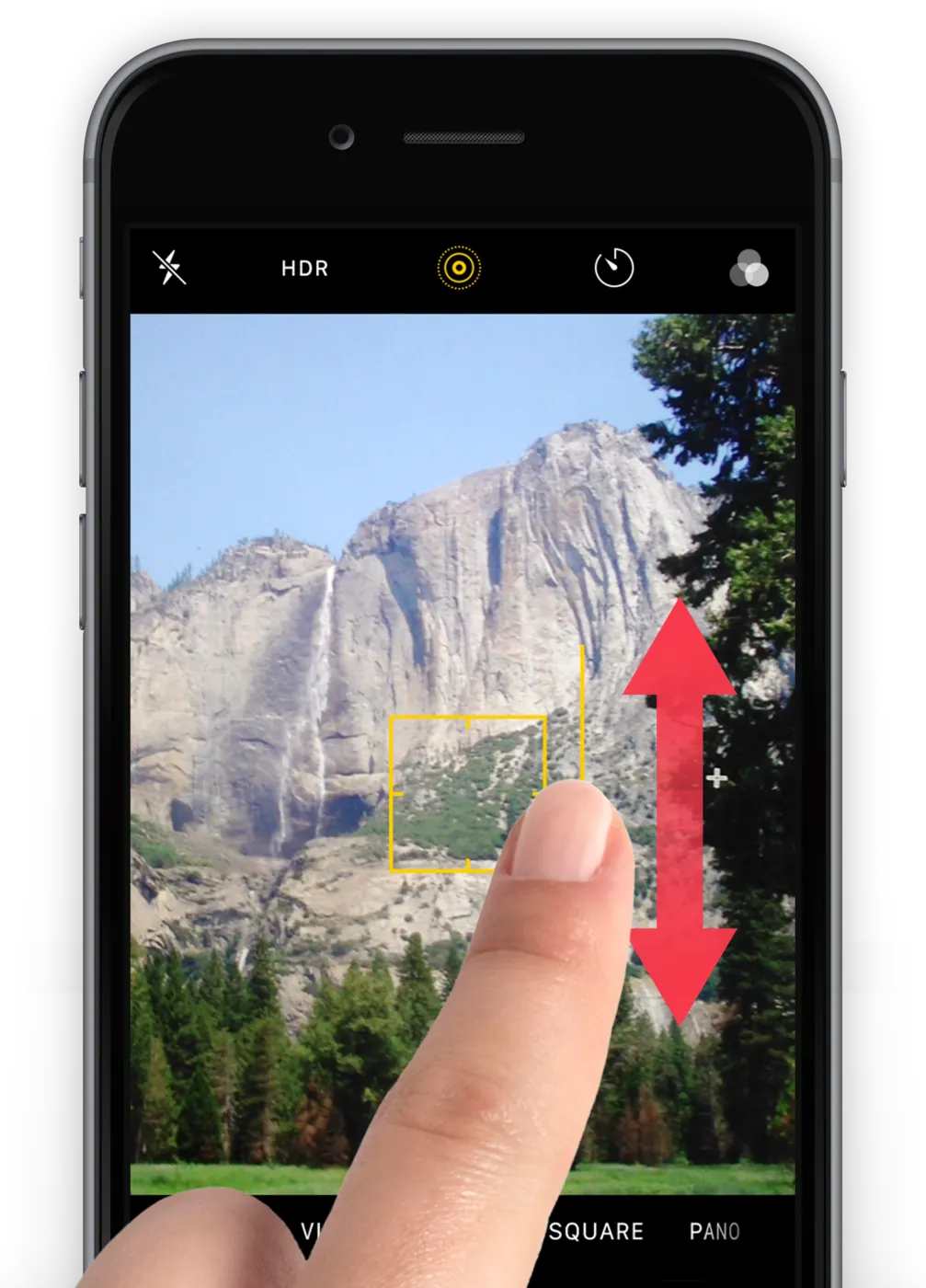
Apple documents three simple but important controls in the Camera app: tap-to-focus, dragging to adjust exposure, and AE/AF Lock for holding exposure and focus on a chosen area. For a serious amateur, the key benefit is consistency. If the phone keeps re-evaluating the scene between frames, your sequence may vary in ways you did not intend, which makes both shooting and later editing less reliable.

Tap-to-focus is useful because it tells the phone what part of the scene matters most right now. Exposure adjustment matters because default auto exposure often protects the overall scene in a way that leaves the subject less prominent than you want, especially with backlight, bright windows, or high-contrast outdoor scenes.

AE/AF Lock becomes most valuable when you are making a short series and want the phone to stop drifting as a face turns, a person moves through the frame, or the composition changes slightly. To lock the exposure, tap and hold a part of the image for a few seconds. You’ll now see the message AE/AF Lock across the top.
Photographically, this is less about becoming 'manual' and more about preventing accidental instability. If your exposure changes from frame to frame for no compositional reason, you learn less from comparison. Locking the key decisions gives you a more honest sequence to review later. That aligns closely with Miru’s approach to timing and critique: compare neighboring frames and identify what actually changed.
Tap to tell the phone what matters.
Adjust exposure before capture when the subject is being sacrificed to the scene.
Use AE/AF Lock for short sequences, not just static scenes.
Control | What it does | Best use |
|---|---|---|
Tap-to-focus | Prioritizes focus on a chosen area | Portraits, close subjects, scenes with layered depth |
Exposure adjustment | Brightens or darkens before capture | Backlight, bright windows, high-contrast scenes |
AE/AF Lock | Holds exposure and focus steady | Short sequences where you want repeatable results |
When does the iPhone's computational photography help, and when can it make a photo look less convincing?
It helps most when the scene is difficult but legible: travel scenes with bright skies and dark foregrounds, fast-moving documentary moments, casual portraits, or everyday situations where speed matters more than perfect tonal subtlety. Technical overviews of computational photography explain that phones rely on multi-frame processing and scene-dependent rendering because their physical capture systems are small relative to larger dedicated cameras. In practice, that means the iPhone can produce a surprisingly polished file very quickly.
The tradeoff is that this polish is not always neutral. A phone may interpret fine texture, foliage, skin, or mixed lighting in ways some photographers find too processed or inconsistent across a body of work. That reaction is partly artistic judgment rather than a universal measurable fact, so it is better to tie it to visible effects: texture may look brittle, local contrast may feel exaggerated, or color relationships may shift more than you want. The underlying technical point, though, is well supported: the phone is making strong rendering decisions on your behalf.
So the practical question is not whether computational photography is good or bad. It is when to trust it. For many fast situations, the default rendering is exactly why the iPhone is useful. For photographs you want to print, sequence carefully, or grade with restraint, you may prefer a workflow with more editing latitude and less commitment to the phone’s immediate interpretation.
Computation is a strength in speed and dynamic range.
Computation can also reduce consistency when you want a quieter, more controlled look.
Visible side effects matter more than arguments about purity.
Situation | Default iPhone processing often helps | Potential downside |
|---|---|---|
High-contrast everyday scene | Fast HDR and usable exposure balance | Rendering may look more processed than you want |
Low-effort family or travel coverage | Convenience and speed | Less control over final tonal character |
Careful personal work for editing | Usable preview and easy capture | May push you toward a look you later need to undo |
When should you use ProRAW, and when is the default iPhone file the smarter choice?
Apple states that ProRAW, on supported models, combines RAW information with iPhone image processing to provide more flexibility when editing exposure, color, and white balance. The key phrase for serious amateurs is more flexibility. ProRAW is not a magic switch that makes every image look more professional. Its value appears when you plan to edit deliberately and want more room to recover highlights, shape tones, or standardize color across a set.
That makes ProRAW especially reasonable for high-contrast scenes, careful landscape or architectural work, or selected images from a project where consistency matters. It is less necessary for everyday bright-light photos you will barely edit, because the workflow cost is higher and the default file may already be more than good enough. The better recommendation is selective use, not blanket use.
A good discipline is to reserve ProRAW for pictures that have earned extra attention. That keeps your workflow intentional. If you edit seriously, ProRAW can be a strong option. If you do not, it may simply create larger files and slower culling without a visible benefit in the final image.
Use ProRAW for important frames, not every frame.
ProRAW gives control, not automatic superiority.
If you will not edit carefully, the default file may be the better choice.
Capture choice | Best for | Limitation |
|---|---|---|
Default file | Speed, convenience, minimal editing | Less latitude for major tonal changes |
ProRAW | Deliberate editing and high-contrast scenes | Slower workflow and larger files |
Why doesn't Portrait mode or fake blur solve weak composition by itself?
Because subject separation is usually a hierarchy problem before it is a blur problem. If the background is brighter, more contrasty, full of readable text, or intersecting your subject awkwardly, software blur may soften some detail without truly fixing the competition. Miru’s archive is especially useful on this point: the background often wins because the frame gave it too much visual power, not because the photographer lacked blur.
This matters on phones because shallow natural depth of field is harder to achieve than on larger-camera systems, which encourages overreliance on simulation. But even convincing blur only helps after the picture is already organized well. A cleaner background, more subject-to-background separation, darker tones behind the subject, or a small change in shooting height often creates a more professional result than blur alone.
Artistically, software blur can be perfectly usable when it supports the picture rather than becoming the point of the picture. The mistake is treating it as a substitute for composition. A viewer rarely says a photograph feels professional because the background is blurry. More often, it feels professional because the photographer made the subject legible quickly and kept secondary detail under control.
First clean the scene, then add blur if it helps.
Blur reduces detail; it does not always remove visual weight.
Readable subject edges matter more than dramatic background softness.
Separation issue | Weak fix | Stronger fix |
|---|---|---|
Busy signage behind subject | Add more blur | Move until the background is quieter |
Bright patch stealing attention | Portrait mode only | Reframe so the subject has tonal priority |
Pole or line through the subject | Edit later | Change position before shooting |
How does camera position change background separation more than most iPhone users expect?
Physical movement changes relationships inside the frame in a way software cannot. A small step left or right can move a head off a bright window. Raising the phone slightly can separate a person from a horizon line or a parked car. Stepping closer can increase subject size relative to distracting surroundings. On a phone, where many users rely on the main wide camera and shoot quickly, these position changes are often the fastest route to a cleaner photograph.
This is one of the biggest upgrades a serious amateur can make with an iPhone: stop thinking only in terms of zoom and start thinking in terms of relationships. Zoom changes framing, but moving changes overlap, spacing, silhouette clarity, and what exactly sits behind the subject. That distinction is central to better subject separation and clearer hierarchy.
A useful field habit is to look specifically at the subject’s outline before pressing the shutter. Does the shape read cleanly? Are there bright mergers, poles, or background faces growing from the edge of the subject? If the outline is confused, the phone has no setting that will make the composition fundamentally clear afterward.
Move your feet before changing apps.
Check the subject outline, not just the subject itself.
Even a small shift can remove a major distraction.
Movement | What it can improve | Why it matters |
|---|---|---|
Left or right | Cleaner background behind subject | Reduces mergers and overlap |
Higher or lower | Better outline against sky, wall, or shade | Improves legibility |
Closer or farther | Subject size versus background complexity | Strengthens hierarchy |
What kinds of light make iPhone photos look cleaner, richer, and more intentional?
The iPhone usually looks best when the light already gives the scene clear structure. Open shade, side light, window light, and other conditions with readable contrast often produce files that feel cleaner because the subject is easier to separate and tones are easier to manage. This is not a phone-only truth, but it matters more on a phone because heavily processed small-camera files tend to look better when they are not being asked to solve ugly light at the same time.
Soft light tends to create gentler transitions and more forgiving tonal relationships, while hard light creates sharper shadow edges and stronger graphic contrast. Neither is automatically superior. Optically, they are different ways of shaping edges, texture, and emphasis. Artistically, whether one feels calmer, more dramatic, or more suitable depends on the subject and your intent. The useful lesson is to recognize what the light is doing rather than following a slogan about good or bad conditions.
For iPhone photography specifically, good light often matters more than small technical gains elsewhere. If the light already separates the subject from the background, gives the face or object tonal priority, and avoids chaotic highlight patches, the phone’s processing has less to fight. That is one reason many strong phone photographs look polished without looking forced: the scene was already visually coherent before the shutter was tapped.
Readable light reduces the need for rescue later.
Soft and hard light are tools, not moral categories.
Watch where the brightest area falls before you shoot.
Light type | Optical effect | Common iPhone advantage |
|---|---|---|
Open shade | Gentler contrast and softer shadow edges | Cleaner skin tones and easier exposure balance |
Side light | More shape and texture definition | Clearer subject modeling |
Hard direct sun | Strong graphic contrast and sharp shadows | Can create bold structure if distractions are controlled |
How do lens choice, zoom habits, and macro camera switching change the picture?
Apple’s documentation makes clear that different iPhone camera options are not interchangeable, and on supported models macro can engage automatically with the Ultra Wide camera at very close distances, down to about 2 cm. For serious amateurs, that matters because changing modules changes more than magnification. It can alter angle of view, perspective feel, working distance, and the overall rendering of the image.
That is why close-up results can feel inconsistent if you do not notice when the phone changes behavior. A shot may suddenly look wider, the background may shift, or the way space feels may change because the phone is no longer using the same camera module. This is not a sign that you are doing something wrong; it is part of learning how the device sees at different distances.
More broadly, use the lens that serves the picture rather than the one that sounds most dramatic. Wide views are flexible, but they can make backgrounds more dominant if you do not get close enough or organize the frame well. Tighter views can simplify, but they may tempt you to stand too far away from the scene. The right choice is the one that gives the clearest hierarchy for that subject.
Different iPhone cameras create different pictures, not just different crops.
Macro behavior can change angle of view and working distance.
Choose the lens for clarity, not novelty.
Choice | What changes | What to watch |
|---|---|---|
Main camera vs wider view | Subject size and background dominance | Whether the scene becomes too busy |
Close-up with macro engaged | Angle of view and working distance | Unexpected shift in composition |
Digital zoom habits | Framing convenience | Whether you are avoiding a better physical position |
How should you edit iPhone photos so they look deliberate instead of overprocessed?
Professional-looking editing usually means controlled editing, not dramatic editing. The goal is coherence: tones that support the subject, color that feels intentional across a set, and local adjustments that solve actual problems rather than adding generic intensity. Adobe’s mobile Lightroom tools are relevant here because they support a serious cross-device editing workflow, but the broader lesson matters more than the software choice: editing should extend your photographic decisions, not replace them.
In practice, restrained editing often looks more authored than aggressive editing on phone files. Heavy sharpening, texture boosting, clarity, or overcorrection of shadows can emphasize exactly the kinds of artifacts small, computationally processed files already struggle with. By contrast, moderate tonal shaping, thoughtful white balance, and selective cleanup of distractions can make the picture feel more finished without drawing attention to the process.
A good standard is consistency across several images, not excitement in one. Many photographs seem impressive in isolation but fall apart as a set because color, contrast, and mood drift from frame to frame. If you want your iPhone work to feel professional, review groups of pictures together and ask whether they belong to the same eye, not just whether each one can win attention alone.
Edit to clarify, not to advertise editing.
Be cautious with sharpening, clarity, and extreme shadow lifting.
Judge a set together if you care about a professional-looking body of work.
Editing goal | Often useful | Often risky |
|---|---|---|
Clarify subject | Subtle exposure and color adjustments | Global overprocessing |
Improve consistency | Match white balance and contrast across a set | Treat every frame as a separate style experiment |
Keep phone files believable | Selective adjustments | Heavy texture, sharpening, and HDR-like exaggeration |
How do you judge whether an iPhone photo actually looks professional rather than just technically impressive?
Start with description, not praise. Ask what is visible, where the eye goes first, what competes with the subject, and whether the frame feels intentional. This is a better test than asking whether the file is sharp or whether the phone handled a difficult scene impressively. Technical competence matters, but professional-looking photographs usually distinguish themselves through hierarchy, timing, spacing, edge control, and consistency of intent.
Then compare nearby frames instead of flattering a single lucky shot. Phones make it easy to shoot several versions quickly, which means they also make it easy to learn from subtle differences. One frame may work because a gesture is cleaner, the background is simpler, or the exposure is slightly more supportive of the subject. If you only judge isolated winners, you miss the reasons those winners exist.
Finally, separate optical fact from artistic judgment. It is a fact if a bright patch at the edge steals attention. It is a judgment if you prefer one color treatment because it feels calmer or more cinematic. Serious photographers improve faster when they keep those categories distinct. Then taste becomes more precise instead of pretending to be objective law.
Describe first.
Compare versions, not myths.
Separate measurable problems from taste.
Question | Professional-looking answer tends to be | Warning sign |
|---|---|---|
What do you notice first? | The intended subject or relationship | A random bright distraction |
Why does this frame win? | Clearer timing, hierarchy, or spacing | Only that it looks punchy |
Would it hold up in a set? | Yes, it feels consistent with other work | No, it depends on novelty alone |
What practical exercise will teach you to get more professional iPhone results in the field?
Try a controlled iPhone sequence. Choose one scene with a clear subject and moderate background complexity: a person near a window, a street corner with repeated movement, a café table by side light, or a doorway with changing foot traffic. The point is to keep the subject and place stable enough that you can learn what each decision changed.
Exercise suggestion, step 1: make an auto set of 3 to 5 frames using the default Camera app without intervention. Step 2: make an exposure-control set by tapping the subject and adjusting exposure before capture. Step 3: make a locked set using AE/AF Lock and shoot a short sequence as the subject or gesture changes slightly. Step 4: make a position set by moving left, right, higher, and lower while keeping the subject broadly similar. If you have a supported Pro model, add one default frame and one ProRAW frame for later editing.
When you review the exercise, compare the sets on as large a screen as you can. Ask which frame establishes the subject fastest. Ask whether exposure stability from the locked set helped. Ask whether a small change in camera position solved more than any setting adjustment. Ask whether the ProRAW file produced a genuinely better final edit or only a slower workflow. These are useful questions because they turn phone photography from passive capture into deliberate comparison.
If you want to repeat the exercise, vary only one major factor at a time on the next outing. For example, keep the same kind of scene but do it in harder light, or keep similar light but choose a more difficult background. That way your improvement comes from diagnosis rather than from lucky variety. Over several sessions, you will learn where the iPhone helps automatically and where it still needs you to take control.
Choose one stable scene.
Shoot auto, adjusted, locked, and moved-position sets.
Compare for subject clarity, consistency, and background control.
Use ProRAW only as an added comparison if your phone supports it.
Mini-set | Exercise suggestion | What to observe |
|---|---|---|
Auto set | 3 to 5 default frames | What the phone prioritizes by itself |
Exposure-control set | Tap subject and adjust exposure | Whether the subject becomes clearer |
Locked set | Use AE/AF Lock for a short sequence | Whether consistency improves across frames |
Position set | Move left, right, higher, lower | Whether physical movement cleans up the picture more than settings do |
Professional iPhone photography is less about proving that a phone can replace every other camera than about making clearer, steadier decisions with the camera you actually have. If you want to keep improving, Miru’s lessons on light, timing, background control, and critique are the natural next step, and a careful critique of your own comparison sets can teach you more than another round of settings hunting.
Sources and further reading
Computational photography part I: What is computational photography?
Use Photographic Styles with your iPhone camera - Apple Support
DXOMARK Camera test protocol version 4 brings trustability, preview ...
Adobe Lightroom mobile app | iPad, iPhone, and Android devices | Adobe
https://www.apple.com/newsroom/2024/09/apple-debuts-iphone-16-pro-and-iphone-16-pro-max/
https://support.apple.com/guide/photos/change-photographic-styles-pht0fb18b379/mac
https://books.apple.com/us/book/iphone-camera-user-guide-2026/id6799625150
https://www.lux.camera/pro-camera-action-introducing-halide-mark-ii/
https://support.apple.com/guide/final-cut-camera/intro-to-camera-settings-dev0eb85c508/ios
https://developer.apple.com/design/human-interface-guidelines/camera-control
https://www.dxomark.com/dxomark-camera-sensor-testing-protocol-and-scores/
https://www.dpreview.com/articles/8037960069/why-smartphone-cameras-are-blowing-our-minds/
https://helpx.adobe.com/ph_fil/lightroom-cc/how-to/lightroom-mobile.html
https://corp.dxomark.com/catalog/services/testing-benchmarking/camera-performance-evaluation/
https://www.dpreview.com/articles/5659541182/leica-says-smartphone-lenses-can-still-improve/
https://corp.dxomark.com/measuring-low-light-portrait-performance-in-smartphone-cameras/
https://lightroom.adobe.com/learn/discover/3d1bd4d3-c786-466e-a27f-897fa2e278d9
https://www.adobe.com/in/learn/lightroom-cc/web/lightroom-mobile-adjustments